Use guides · Getting started
How to Receive Emails in Your Temporary Inbox
See how messages arrive in your FreeTemp inbox, how to open them safely, and how to extend or delete the inbox when you are done.
By FreeTemp2 min read
Once your address is in a form, your inbox does the rest. This guide explains what happens when a message arrives and how to read it safely.
What you need
- A FreeTemp tab that is still open with your address. If you have no address yet, create one.
- The address already used on a website. See how to sign up with a temporary email.
Steps
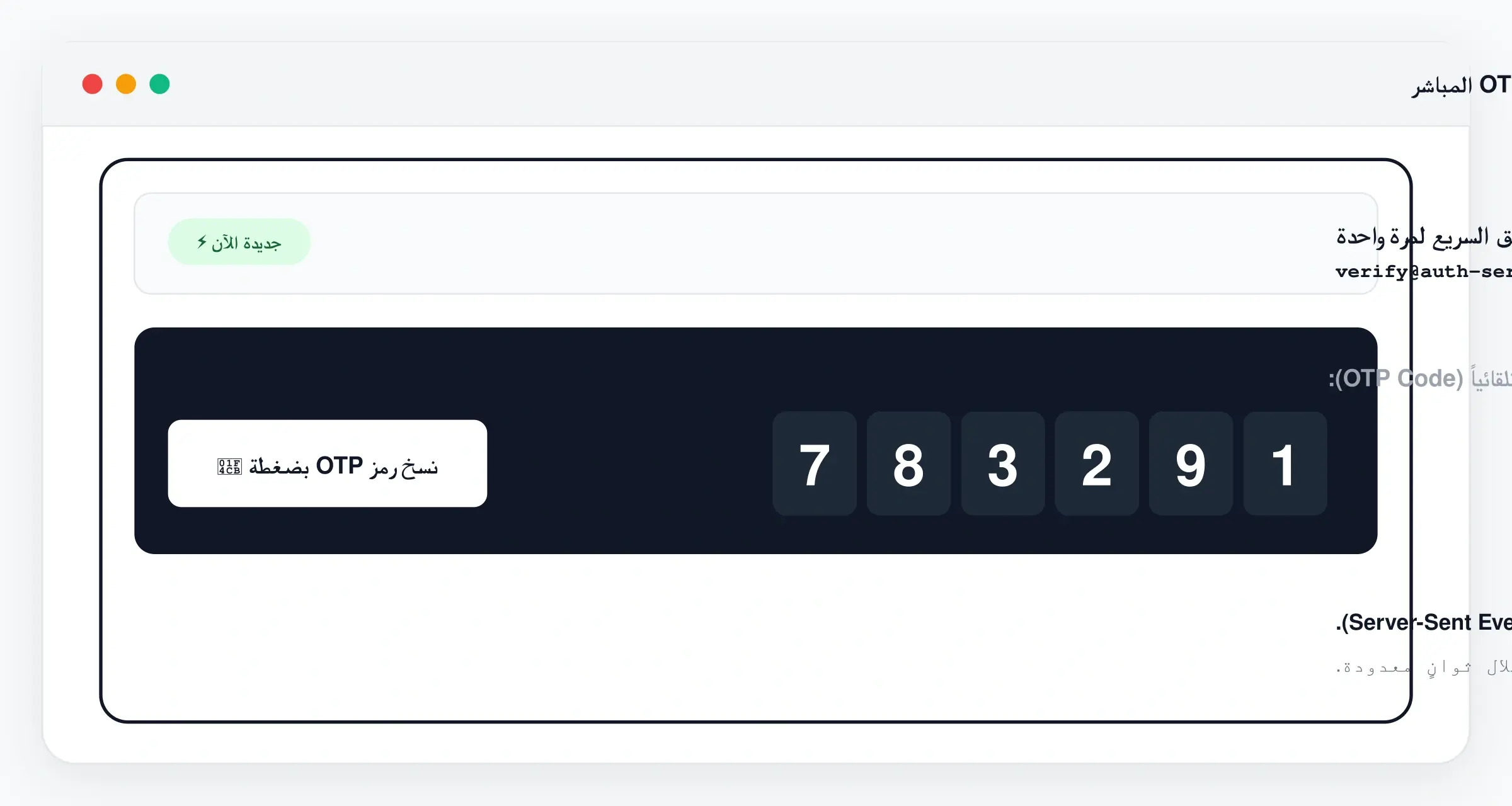
- Keep the FreeTemp page open. Messages appear in the inbox the moment they arrive, without reloading.
- When a message appears, tap it to open it. It opens in an isolated preview that blocks external images and resources.
- If the message contains a verification code, a quick-code card appears with a copy button. Learn more in how to receive a verification code.
- If the message contains a link, read where it leads before you tap it, as you would in any email. For links that confirm an account, follow how to open a confirmation link.
- When you are done, press Burn mailbox to delete the inbox and its messages immediately, or let it expire on its own.
Common problems
- Nothing arrives. Follow what to do when the verification email is missing.
- The inbox disappeared. It expired. See what to do when the inbox expires.
Related
If a message seems to be a verification email, find it among your messages.
Frequently asked questions
Do I need to refresh the page?
No. Messages appear in the inbox as they arrive.
Can I reply to a message?
No. The inbox only receives messages; it cannot send.