Use guides · Email verification
How to Find a Verification Email in a Temporary Inbox
Know which message is the verification email, how long to wait for it, and what to open first when several messages arrive in your FreeTemp inbox.
By FreeTemp2 min read
After you submit a sign-up form, the site sends a message to your temporary address. This guide helps you spot the right one and open it.
What you need
- An address already used on a site: see how to sign up with a temporary email.
- The FreeTemp tab, still open.
Steps
- Watch the inbox. Messages show up live, so do not reload.
- Look at the sender and subject. Verification emails often say "verify", "confirm", "activate" or "code", and come from the name of the site you just used.
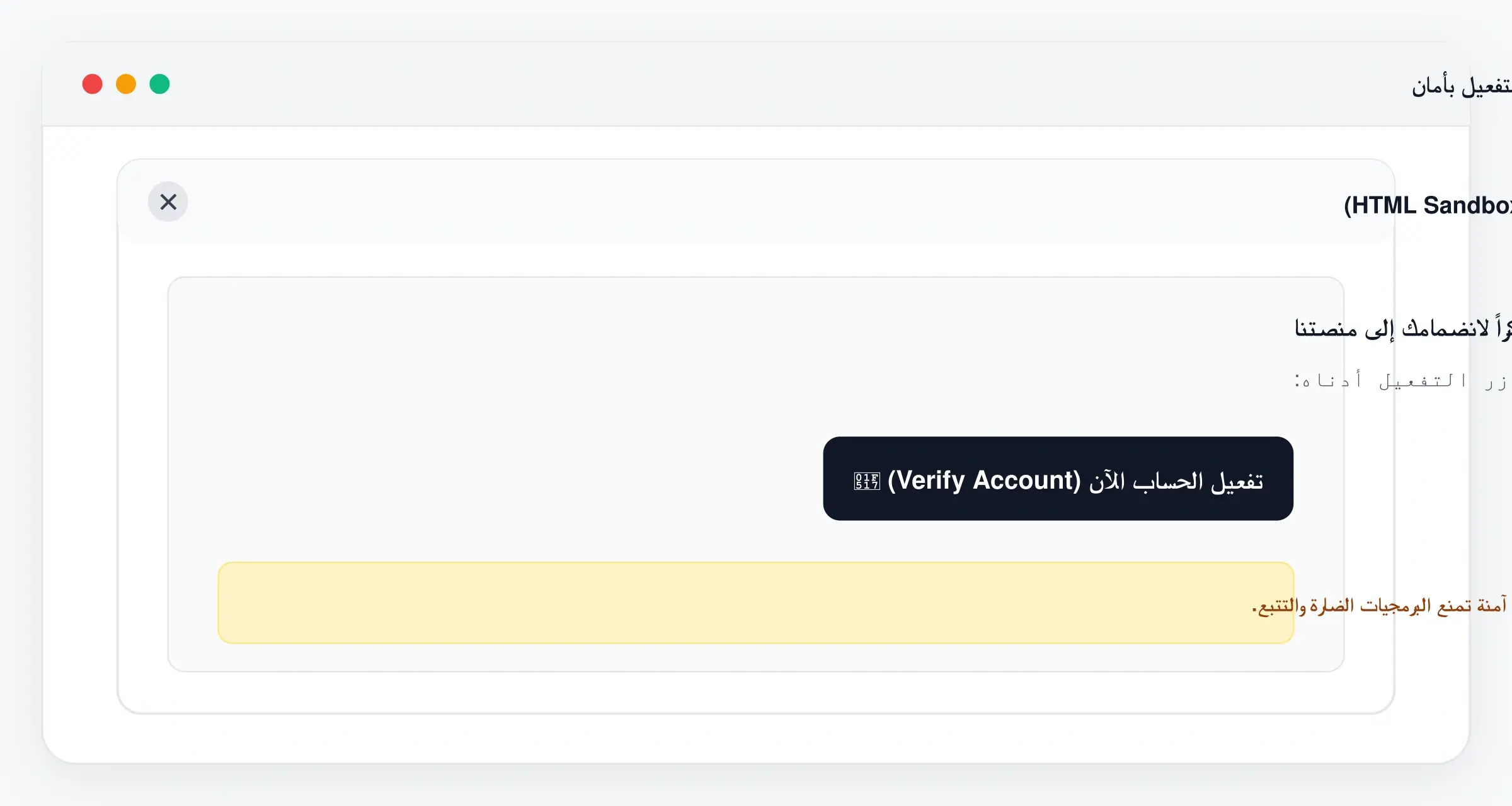
- Tap the message to open it in the isolated preview.
- If it contains a code, a quick-code card shows it with a copy button. Continue with how to receive a verification code.
- If it contains a button or link, follow how to open a confirmation link.
Common problems
- The inbox is empty. Wait a minute, then use the missing-email checklist.
- The message looks odd or has no images. External images are blocked on purpose. The text and links are still there.
Related
To understand what else can arrive, read how to receive emails in your temporary inbox.
Frequently asked questions
How long should I wait?
Usually a minute or two. If nothing arrives after that, check the address and request one resend.