Use guides · Getting started
How to Copy Your Temporary Email Address and Paste It into a Form
Copy your FreeTemp address with one tap and paste it into any sign-up form without typos, so the verification email actually reaches you.
By FreeTemp2 min read
A message can only reach you if the address in the form is exactly the address in your inbox. Typing it by hand is where most mistakes happen, so copy and paste it instead.
What you need
- An address from FreeTemp. If you do not have one yet, create a temporary email address first.
Steps
- On the FreeTemp page, press the copy button next to the address. Your device confirms the copy.
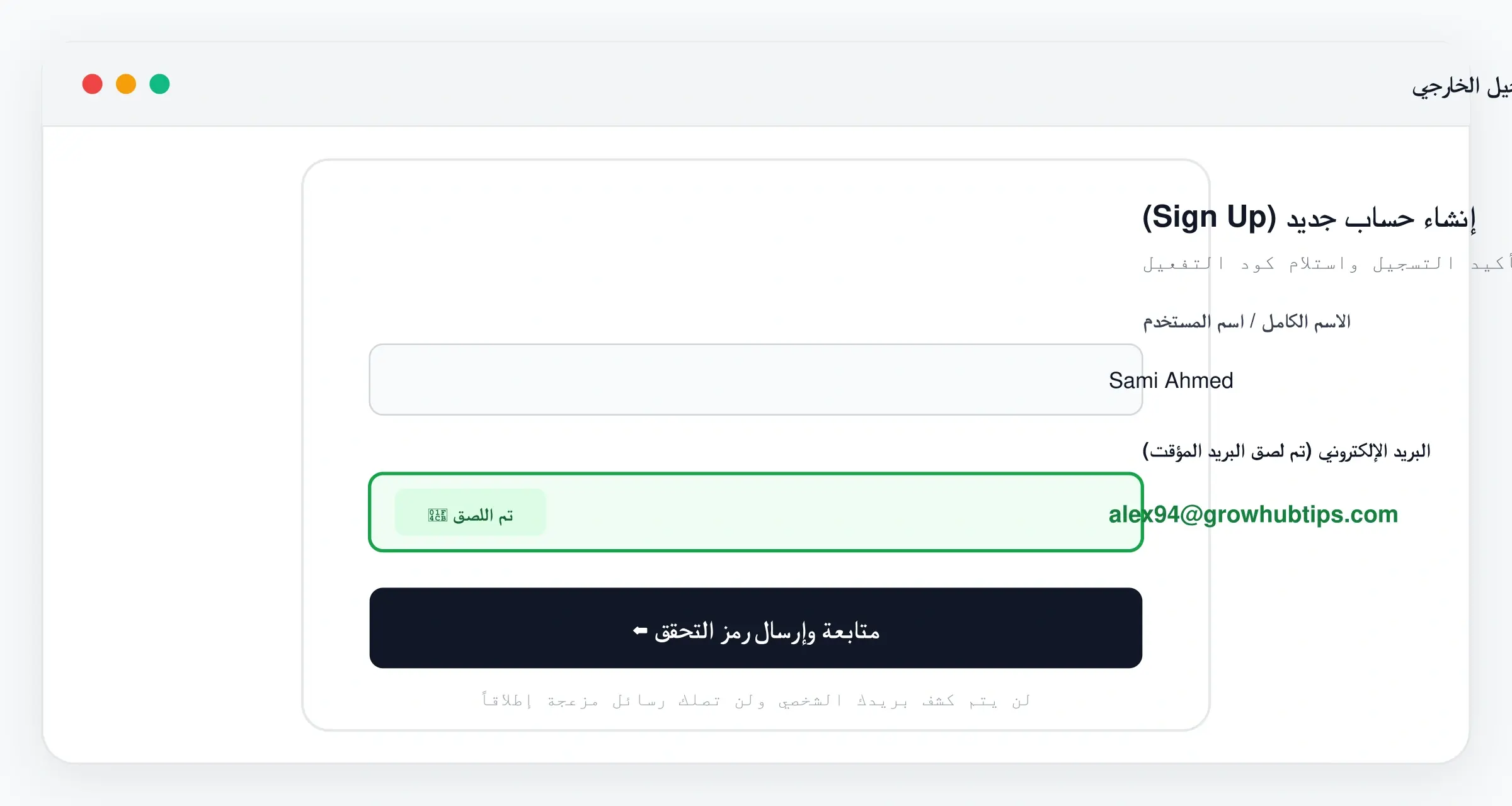
- Switch to the website or app where you are signing up. Keep FreeTemp open in its own tab or window.
- Tap the email field and choose Paste.
- Look at the pasted text. It should be one address with no spaces before or after it.
- Continue the form. When you submit it, go back to your inbox: find the verification email.
Common problems
- Paste does nothing. Long-press the field and choose Paste, or copy the address again.
- The site says the email is invalid. Check for a leading or trailing space. If it still fails, the site may block the domain: see when a website rejects the address.
- You pasted an older address. Your clipboard holds only the last thing you copied. Copy again from FreeTemp.
What to do next
Finish the form and follow how to sign up for a website with a temporary email.
Frequently asked questions
Why must I copy the whole address?
A single missing or extra character sends the message to an address that does not exist, so it never reaches your inbox.